Version 2.2 – 15 November 2026
Copyright © 2026 Bruce Lockie, trading as Full Circle Immersive. All rights reserved.
PLEASE READ THIS AGREEMENT CAREFULLY. BY BUYING, INSTALLING, COPYING OR USING THE SOFTWARE YOU AGREE TO IT. IF YOU DO NOT AGREE, DO NOT INSTALL OR USE THE SOFTWARE. IF YOU ACCEPT THIS AGREEMENT FOR AN ORGANISATION, YOU CONFIRM THAT YOU HAVE AUTHORITY TO BIND IT, AND "YOU" MEANS THAT ORGANISATION.
This is a licence, not a sale. The Software is licensed to you; it is not sold.
1. WHO WE ARE
1.1 "We", "us" and "our" mean Bruce Lockie, a sole trader trading as Full Circle Immersive, in England. You can contact us at fullcircleimmersive@gmail.com.
1.2 This agreement is between you and us. Microsoft is not a party to it (see clause 10).
2. DEFINITIONS
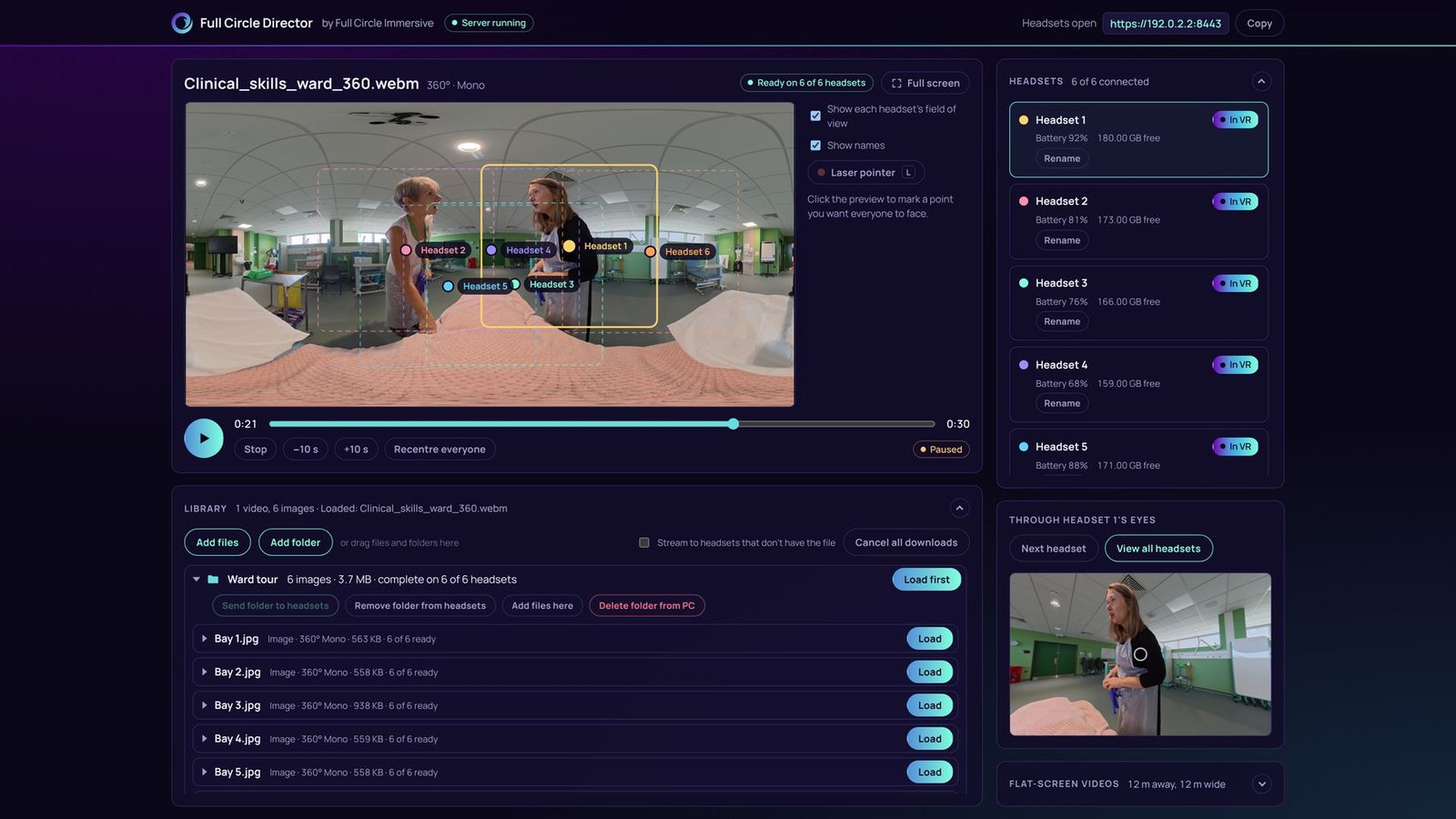
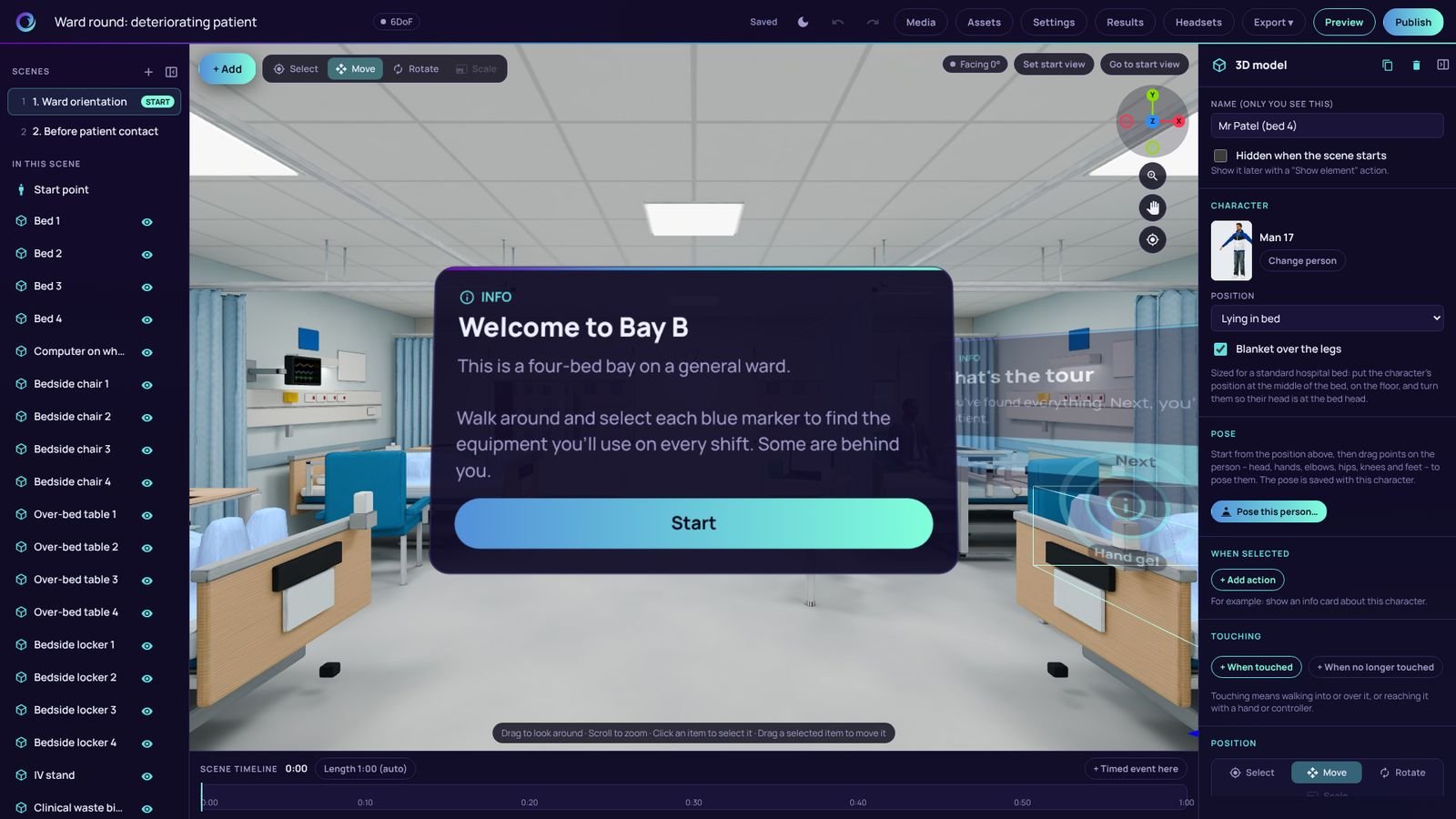
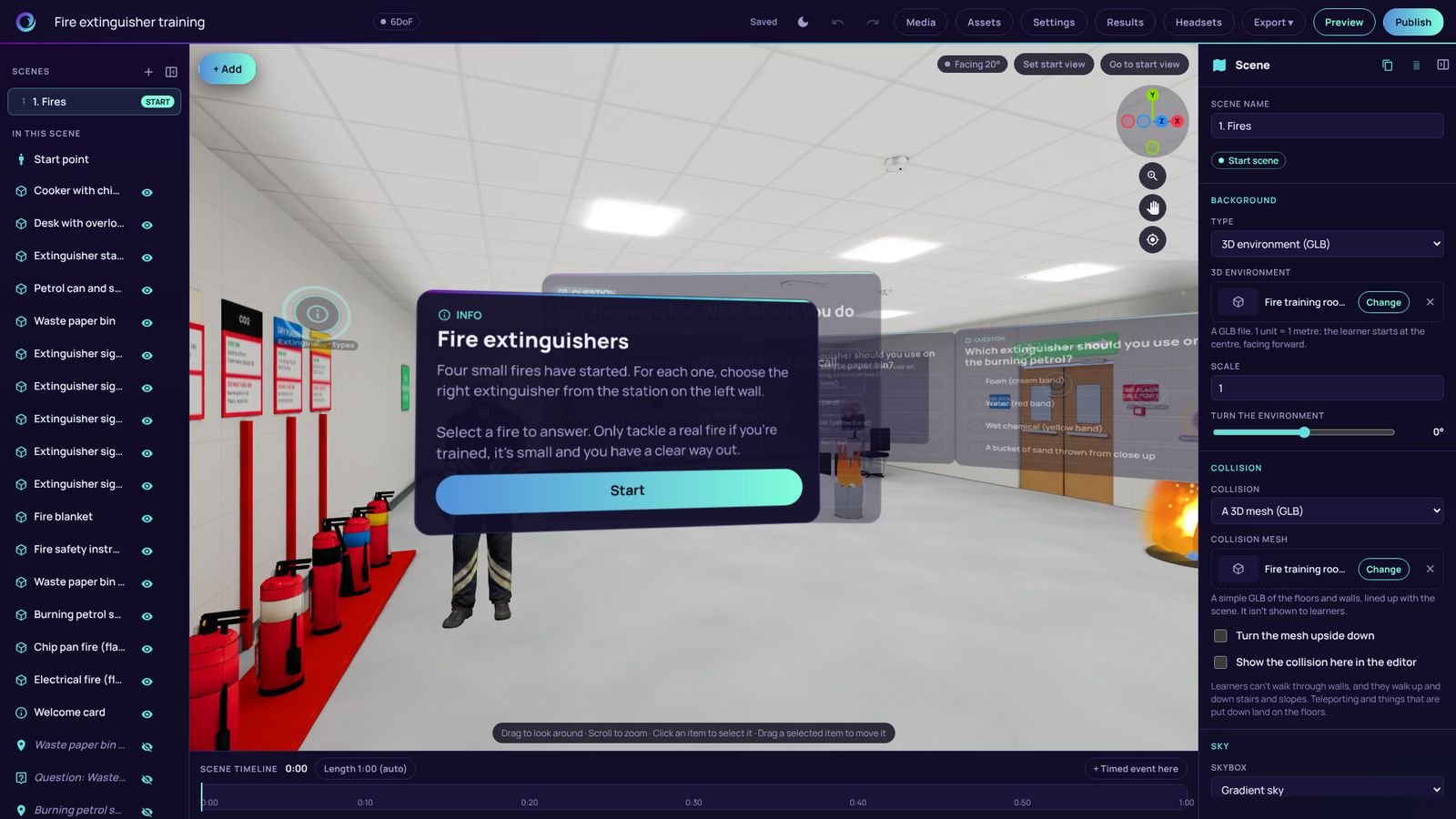
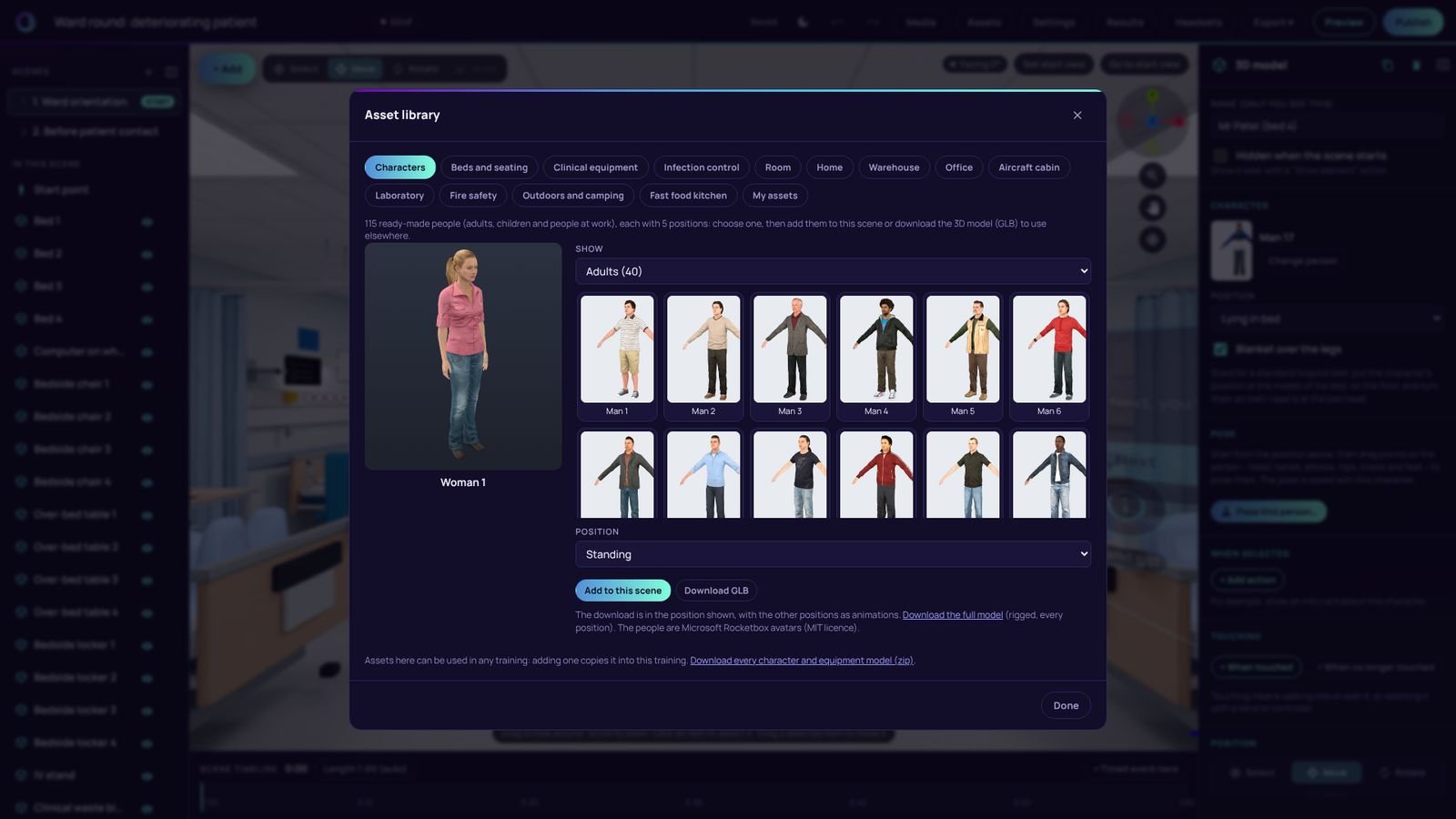
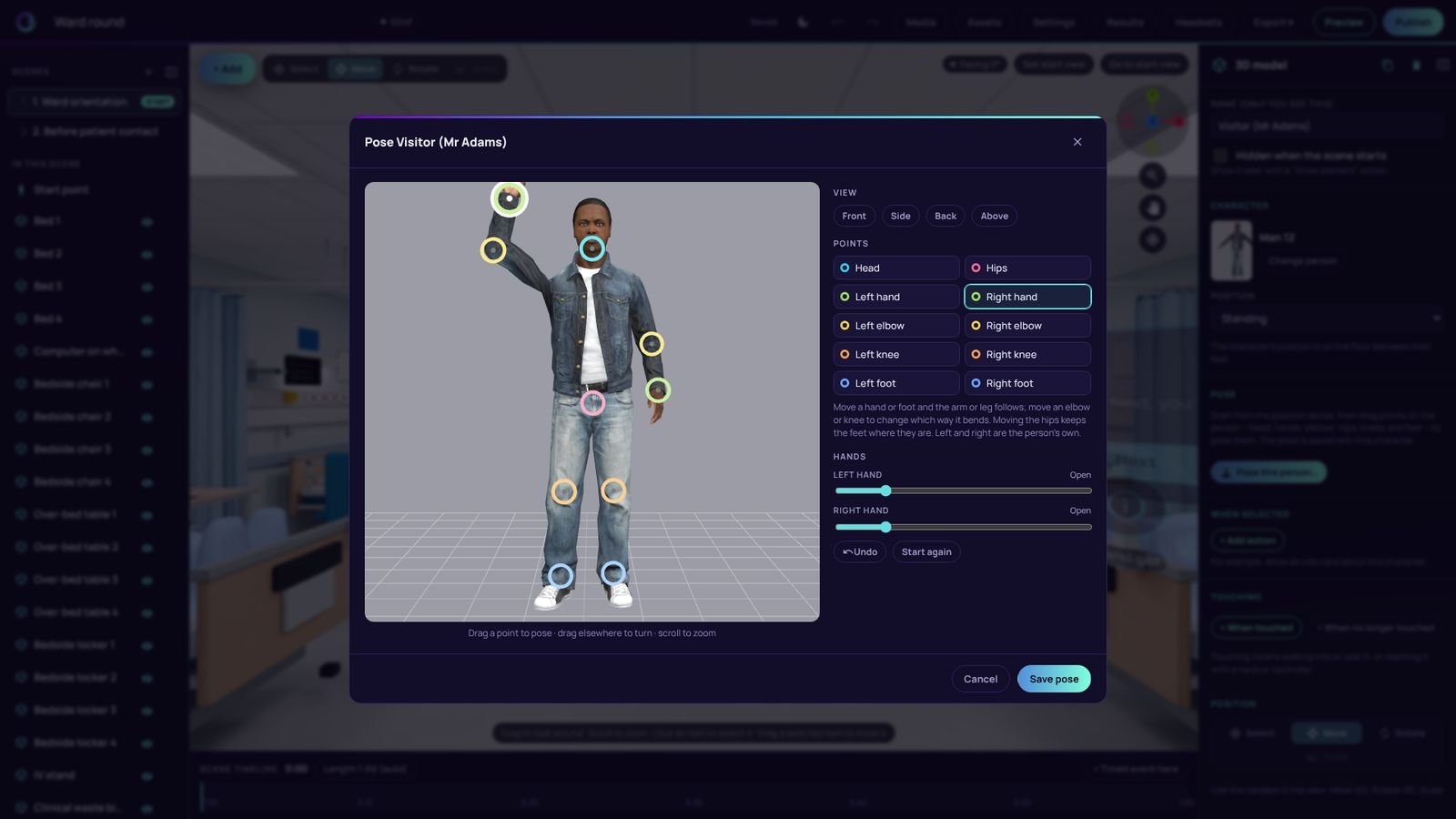
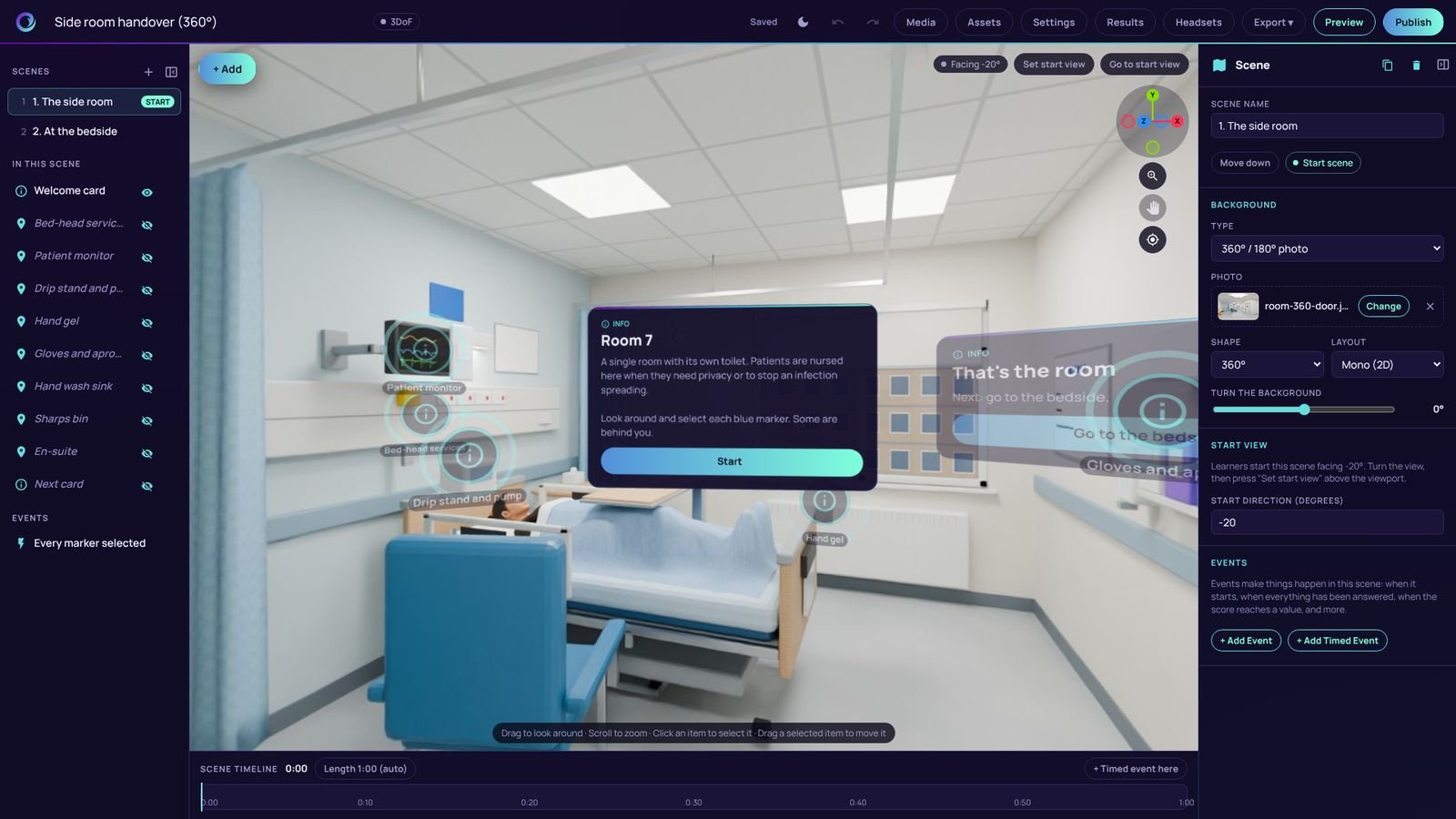
2.1 "Software" means Full Circle Create (including the Demo) and Full Circle Explore, including the editor, the headset app, the player code included in exported trainings, the templates, the 3D model library, the characters, the documentation and any updates we provide, in any form.
2.2 "Microsoft Store" means the Microsoft Store on Windows, and "Usage Rules" means the Microsoft Store usage rules that Microsoft publishes and may change from time to time.
2.3 "Store Licence" means a licence to the Software bought through the Microsoft Store.
2.4 "Your Content" means the material you create or bring into the Software: trainings, text, questions, images, sounds, video, 3D models, Gaussian splats and other media.
2.5 "Training" means an interactive training you make with the Software, including when exported as a training file (.fcpkg), a web package or a SCORM package, or published to headsets.
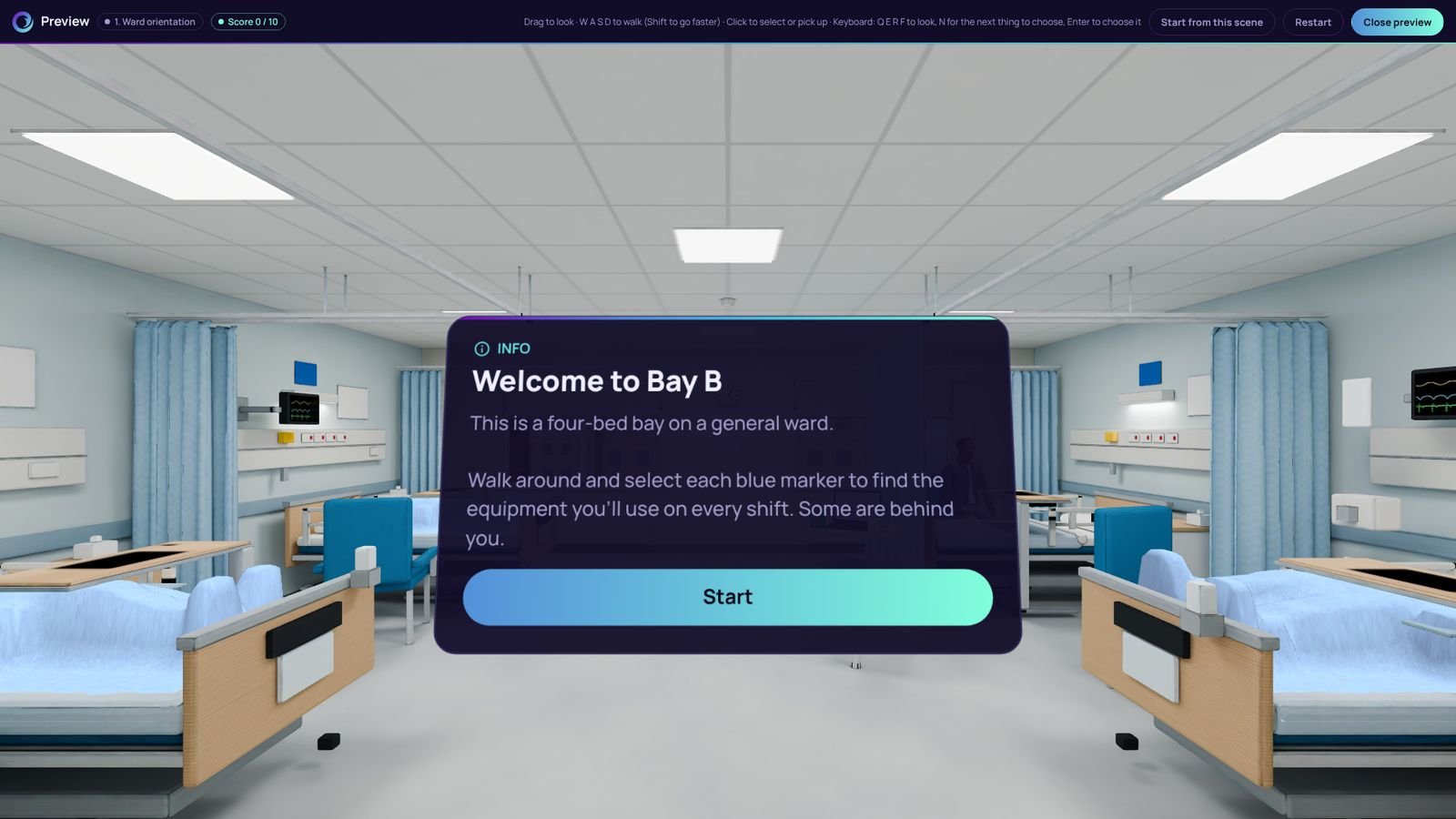
2.6 "Player Components" means the parts of the Software that are needed to play a Training: Full Circle Explore and the player code included in web packages, SCORM packages and published Trainings.
2.7 "Learner" means a person who takes one of your Trainings.
2.8 "Consumer" means an individual using the Software wholly or mainly outside their trade, business, craft or profession.
2.9 "Demo" means Full Circle Create Demo, the free version of the Software in the Microsoft Store, in which some content and features are limited or unavailable.
3. YOUR LICENCE
3.1 Perpetual licence. The full version of the Software is sold for a one-off fee. Once you have paid it, we grant you a perpetual, non-exclusive, non-transferable licence to use the Software as set out in this clause 3. "Perpetual" means your licence has no end date: it continues for as long as you keep to this agreement, for the version of the Software you bought and the updates described in clause 5.
3.2 Where you may use it. You may install and use the Software on the Windows devices linked to the Microsoft account you bought it with, as the Usage Rules allow. You may use it for your own purposes and, if you are a business, for your organisation's business, including making Trainings for your clients.
3.3 We reserve all rights not expressly granted to you.
3.4 The Demo. If you use the Demo, clauses 3.1 and 4 do not apply to it. Instead, we grant you, free of charge, a non-exclusive, non-transferable licence to install and use the Demo on Windows devices as the Usage Rules allow, to try the Software and to make, use and share Trainings within the Demo's limits. This licence continues until you or we end it under clause 13. The Demo's limits, such as the number of headsets that can connect and the content and features available, are technical limits under clause 7.1(f). We may change or withdraw the Demo at any time. Buying the full version gives you a licence under clause 3.1, and Trainings you made with the Demo can be used with it. Everything else in this agreement applies to the Demo.
4. FEES
4.1 The licence fee is a one-off payment: the price shown in the Microsoft Store, charged by Microsoft. Your licence starts when payment has been received in full.
4.2 Prices include or are charged with any VAT or other taxes that apply. There are no recurring fees unless you choose to buy something else, such as a new major version.
5. UPDATES, NEW VERSIONS AND SUPPORT
5.1 Updates. Your licence includes the updates we release for the version of the Software you bought (for example fixes, improvements and security updates within version 1). These are delivered through the Microsoft Store at no extra charge.
5.2 New major versions. We may release a new major version (for example version 2) as a separate product with its own price. Your licence to the version you bought continues, and buying the new version is your choice.
5.3 Keeping the Software working. We will keep the version you bought available to download and reinstall for as long as it is available in the Microsoft Store. We do not promise it will keep working with future versions of Windows, headsets, browsers or learning management systems.
5.4 Support. Support is by email to the address in clause 1.1. We will try to answer within 5 working days, but we do not promise a response time. Microsoft, your device maker and your network provider do not provide support for the Software.
6. YOUR TRAININGS AND LEARNERS
6.1 You own Your Content. We claim no ownership of it.
6.2 You may give your Trainings, with the Player Components inside them, to your Learners and your clients, and host them on your own systems, your learning management system (LMS) or a web host, free of any further charge from us, provided that:
(a) the Player Components are used only to play Trainings made with the Software;
(b) you do not change, separate or redistribute the Player Components on their own; and
(c) you do not remove our copyright notices or the third-party notices.
6.3 Learners do not need their own licence to take your Trainings, on headsets, in a browser or through an LMS.
6.4 If your licence ends for any reason other than your breach (clause 13.2), Trainings you made with it may continue to be used by your Learners.
6.5 Templates, models and characters. You may use, change and include the templates, 3D models, characters, images and sounds supplied with the Software in your Trainings. You may not sell, share or redistribute them on their own, as part of an asset pack, or in a product that competes with the Software. This does not limit any wider rights an open-source licence gives you in a component (clause 8).
7. RESTRICTIONS
7.1 Except as this agreement or the law expressly allows, you must not:
(a) copy, modify, translate or create derivative works of the Software;
(b) decompile, disassemble or reverse engineer the Software, except to the extent the law allows this despite this agreement (for example under sections 50B and 296A of the Copyright, Designs and Patents Act 1988 to achieve interoperability);
(c) rent, lease, lend, sell, sublicense, transfer, distribute or make the Software available to anyone else, including as a hosted or online service, except for the Player Components as allowed by clause 6;
(d) use the Software beyond the limits of your licence (for example on devices not covered by your Store Licence and the Usage Rules);
(e) remove, hide or change any copyright, licence or third-party notice;
(f) get around any licence check, activation or other technical limit, including those of the Microsoft Store; or
(g) use the Software to build a product or service that competes with it.
7.2 You are responsible for anyone you allow to use the Software complying with this agreement.
8. THIRD-PARTY COMPONENTS
8.1 The Software includes third-party components, including Electron and Chromium, three.js, ws, selfsigned, node-forge, the Manrope font, Material Icons and the Microsoft Rocketbox avatar library (MIT licence). They are listed, with their licences, in THIRD-PARTY-NOTICES.txt in the program folder.
8.2 Those licences apply to those components, and nothing in this agreement limits the rights they give you.
9. YOUR CONTENT, LEARNERS' DATA AND PRIVACY
9.1 You are responsible for Your Content, including having all the rights, licences and permissions needed for any media, 3D models, Gaussian splats or other material you bring into the Software, and for the accuracy and suitability of your Trainings.
9.2 The Software runs on your computers and network. Learners' names, answers and results are stored on your computer and headsets, and sent to an LMS or other system only if you set this up. The Software does not send Your Content or Learners' data to us. For any personal data the Software processes, you are the controller and are responsible for complying with data protection law (including the UK GDPR).
9.3 If you send us Your Content or personal data (for example for support), we will use it only to help you, keep it confidential and handle it in line with UK data protection law.
10. THE MICROSOFT STORE
10.1 Microsoft's terms for the Microsoft Store, including the Usage Rules and its refund policy, also apply to your purchase or download. Microsoft handles payment, download, installation and refunds. Where this agreement and the Usage Rules differ about the devices you may install the Software on, the Usage Rules apply.
10.2 Microsoft is not a party to this agreement and is not responsible for the Software or for support. This agreement is between you and us.
10.3 If Microsoft disables the Software on your devices under your agreement with Microsoft, your Store Licence for those devices ends. If that happens through no fault of yours, contact us and we will try to help.
11. TRAINING IS YOUR RESPONSIBILITY
11.1 The Software is a tool for making and delivering training. It does not replace qualified instruction, supervision, assessment or certification where these are needed (for example in healthcare, fire safety or work with machinery).
11.2 You are responsible for the content of your Trainings, for deciding how they are used, and for the health and safety of Learners using virtual reality headsets, including following the headset maker's safety guidance.
12. WARRANTY AND LIABILITY
12.1 Consumers. If you are a Consumer, you have legal rights in relation to digital content that is faulty or not as described, including under the Consumer Rights Act 2015. Nothing in this agreement affects those rights. If the Software damages a device or other digital content you own because we did not use reasonable care and skill, we will repair the damage or pay you compensation. We are responsible for loss or damage you suffer that is a foreseeable result of our breaking this agreement, but not for any business losses.
12.2 Businesses. If you are not a Consumer, then to the extent the law allows, the Software is provided "as is", and all warranties, conditions and terms implied by law are excluded. We do not warrant that the Software will be free of errors or run without interruption, or that it will work with every headset, browser, LMS or file.
12.3 Nothing in this agreement limits or excludes our liability for death or personal injury caused by our negligence, for fraud or fraudulent misrepresentation, or for anything else that cannot be limited or excluded by law.
12.4 Subject to clause 12.3, if you are not a Consumer:
(a) we are not liable for any loss of profits, revenue, business, goodwill or anticipated savings, for loss or corruption of data, or for any indirect or consequential loss, however it arises; and
(b) our total liability to you under or in connection with this agreement is limited to the licence fee you paid for the Software or, if you have used only the Demo, £1.
12.5 You are responsible for keeping backups of Your Content and Trainings.
13. HOW THIS AGREEMENT ENDS
13.1 You may end your licence at any time by uninstalling and deleting all copies of the Software. Fees already paid are not refunded, except under the Microsoft Store's refund policy or where the law requires.
13.2 We may end this agreement by written notice if you seriously breach it and, where the breach can be put right, you do not put it right within 30 days of being asked to.
13.3 When this agreement ends you must stop using Full Circle Create and delete all copies of it. Clauses 6.1, 6.4, 8, 9, 11, 12, 13.3 and 14 continue to apply.
14. GENERAL
14.1 Transfer. You may not transfer this agreement or your licence to anyone else without our written consent. We may transfer our rights and obligations to another organisation, and will tell you if we do; this will not reduce your rights under this agreement.
14.2 Changes to this agreement. We may update this agreement for future versions of the Software or to reflect changes in the law or the Microsoft Store. Changes will not reduce the rights you already have for the version you bought.
14.3 Export. You will comply with any export control and sanctions laws that apply to your use of the Software.
14.4 Whole agreement. This agreement is the whole agreement between us about the Software. You have not relied on anything not set out in it.
14.5 If any part of this agreement is found invalid or unenforceable, the rest stays in force.
14.6 If we do not enforce a right straight away, we can still enforce it later.
14.7 No one other than you and us has any right to enforce this agreement under the Contracts (Rights of Third Parties) Act 1999.
14.8 Law and courts. This agreement, and any dispute or claim arising out of or in connection with it, is governed by the law of England and Wales, and the courts of England and Wales have exclusive jurisdiction. If you are a Consumer living in Scotland or Northern Ireland, you may also bring proceedings in your local courts. If you are a Consumer living elsewhere, you keep the protection of any mandatory consumer law of the country where you live.
Bruce Lockie, trading as Full Circle Immersive · fullcircleimmersive@gmail.com